Why Linux has file permissions?
In short – for security reasons.
Linux by design is a multi-user operating system. But if any user could access and modify all files, including those belonging to other users or system files, this would be a security risk. So Linux (as other Unix-like systems) has built-in security measures to ensure that a file or directory can be accessed, modified or executed by only desired users.
Which file would be accessed by which user and to what degree is decided by two factors:
- File ownership (user, group, others)
- File permission (read, write, execute)
File ownership is a way to manage users in a multi-user environment. There are three distinct scopes or classes of ownership:
- User – the owner of the file, those who have created it.
- Group – a set of users. Every user is a part of a certain group(s), but only one group can be the owner of a file at a time.
- Others – everyone else, all users of the system.
Every file in Unix-based systems is associated with a 12-bit word. We can represent this word as four sets of three bits (triads) that determine what users can do with a file. The three rightmost sets specify permissions for the file owner, their group and other users respectively. Three bits in every set define permissions to read, to write and to execute a file.
The first triad defines special permissions – SetUid, SetGid and Sticky-bit (more on this later).
File permissions are represented either in symbolic notation or in numeric (absolute) notation.
Types of file permissions
| Permission | Symbolic notation | Numeric notation | File | Directory |
|---|---|---|---|---|
| Read | r – – | 4 – – | Can view or copy file contents | Can read the names of files in the directory, but cannot find out any further information about them such as contents, file type, size, ownership, permissions. |
| Write | – w – | – 2 – | Can modify file content | Can modify (create, delete, rename, edit) files in the directory (if execute permission is also granted). |
| Execute | – – x | – – 1 | Can run the file (if it is executable). | When set for a directory, it grants the ability to access file contents and meta-information if its name is known, but not list files inside the directory, unless read is set also. |
Symbolic notation
To see file permissions, run in terminal ls -l command.
The output will be something like this:
drwxr-xr-x  2 root root  4096 May  4  2023  Videos
-rwx--x--x  1 root root   181 Aug  5  2023  cats.jpg
lrwxrwxrwx  1 root root    34 May  4  2023 "linux for fun" -> /mnt/user/linux_for_fun.txt
This translates as follows:
- rwx--x--x  1 root root   181 Aug  5  2023  cats.jpg
- ---------  - ---- ----   --- ------------  --------
|    |       |   |   |      |        |           |
|    |       |   |   |      |        |           +----- file name
|    |       |   |   |      |        +----- modification time
|    |       |   |   |      +----- file size in bytes
|    |       |   |   +----- group owner
|    |       |   +----- user owner
|    |       +----- hard link count
|    +----- permissions
+---- file type
The area of this output we are really concerned with is the grouping at the beginning of the line: -rwx--x--x
The first symbol indicates the file type.
d rwx r-x r-x d at the beginning shows that this is a directory,
– rwx –x –x hyphen means this is a file,
l rwx rwx rwx l indicates this is a symbolic link (soft link) to file.
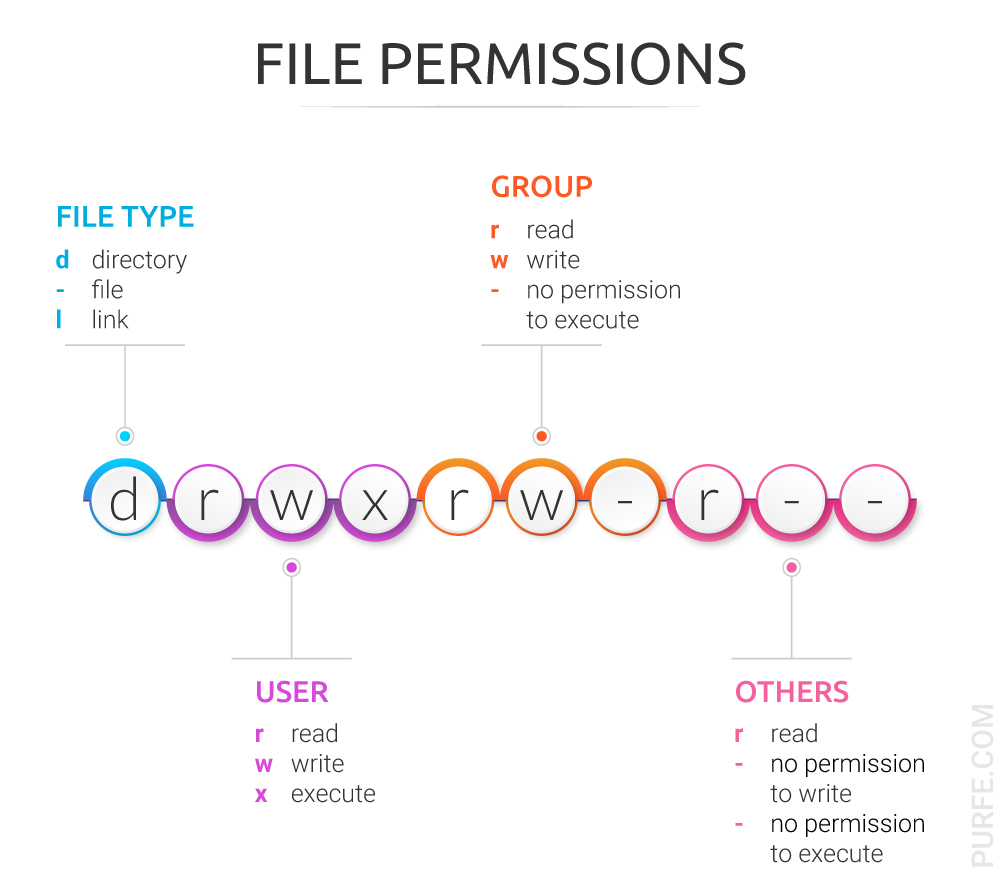
Following the file type symbol is the area where the access permissions for the file are displayed. There are three triads defining file permissions for user, group and others.
[IMG]
d rwx r-x r-x for this directory user has rights to rwx = read, write and execute, members of the user group and other users have the right to read and execute (r-xr-x). Hyphen sign means no permission set, permission denied.
– rwx –x –x for this file user has the full set of permissions (read, write and execute), and group and others have only the right to execute (–x–x).
l rwx rwx rwx for this link everybody has the full set of permissions.
Numeric (absolute) notation
To see permissions in numeric notations run: stat -c '%a' file_name
The output looks like 3 (sometimes 4) digit code where the last three digits represent permissions for user, group, and others. Each of these digits is the sum of its component bits in the binary numeral system. The first digit in four-digit representation is special file permissions; it is optional.
(0) 7 6 6
 |  | | |
 |  | | +---- others permission code
 |  | +---- group permission code
 |  +---- user permission code
 +---- special file permissions: SetUid bit, SetGid bit, sticky bit
In this mode, each file permission expressed in numeric form (base-8, or octal notation). This notation consists of at least three digits, so each octal character can represent three binary digits.
That is why octal is an ideal abbreviation of the binary representation of file permissions.
Each type of file permission has the following representation in binary:
The read can be represented as 100 (22+01+00 = 4); that adds 4 to the octal total.
The write – 010, (02+21+00 = 2); that adds 2 to the octal total.
The execute – 001, (02+01+20 = 1); that is – plus 1 to the octal total.
By adding the number of each triad together, individual permissions are set.
So you end up creating the triplets for each owner group by adding up above digits.
Numeric   Permission                        Symbolic     Binary
    7       read, write and execute           rwx        111
    6       read and write                    rw-        110
    5       read and execute                  r-x        101
    4       read only                         r--        100
    3       write and execute                 -wx        011
    2       write only                        -w-        010
    1       execute only                      --x        001
    0       no permissions                    ---        000
As we can see, these values never produce ambiguous combinations; each sum symbolises a specific set of permissions.
Each of the three rightmost digits represents permissions for user owner, group, and others.
Symbolic notation   Numeric       English
  --- --- ---       0000          no permissions
  rwx --- ---       0700          read, write and execute only for owner
  rwx rwx ---       0770          read, write and execute for owner and group
  rwx rwx rwx       0777          read, write and execute for owner, group and others
  --x --x --x       0111          execute
  -w- -w- -w-       0222          write
  -wx -wx -wx       0333          write and execute
  r-- r-- r--       0444          read
  r-x r-x r-x       0555          read and execute
  rw- rw- rw-       0666          read and write
  rwx r-- ---       0740          owner can read, write, and execute;
                                  group can only read;
                                  others have no permissions
Permissions for directories
As mentioned above, directories have a different interpretation for file permissions.
- Execute permission gives the rights to use the content of the directory. Execute permission is required for a user to
cdinto a directory. However, execute alone is sufficient to access the files in a directory as long as the user knows the file names and has rights to read the file. - Read permission allows to execute
lscommand to view the files in a directory. - Write permission when paired with execute permission allows to create, delete, or modify any files or subdirectories despite of file ownership.
Here is what will happen when you set different file permissions for file and directory and try to access them from a user other then owner (or root).
| Directory permissions | File permissions | Can cd? |
Can ls? |
Can delete dir? | Can create subdirectories? | Can open file? | Can edit file? | Can delete file? |
|---|---|---|---|---|---|---|---|---|
| 744 | No | Yes | No | No | – | – | – | |
| 700 | – | – | – | – | No | No | No | |
| 744 | – | – | – | – | No | No | No | |
| 766 | – | – | – | – | No | No | No | |
| 722 | No | No | No | No | – | – | – | |
| 700 | – | – | – | – | No | No | No | |
| 744 | – | – | – | – | No | No | No | |
| 766 | – | – | – | – | No | No | No | |
| 711 | Yes | No | No | No | – | – | – | |
| 700 | – | – | – | – | No | No | No | |
| 744 | – | – | – | – | Yes | No | No | |
| 766 | – | – | – | – | Yes | Yes | No | |
| 755 | Yes | Yes | No | No | – | – | – | |
| 700 | – | – | – | – | No | No | No | |
| 744 | – | – | – | – | Yes | No | No | |
| 766 | – | – | – | – | Yes | Yes | No | |
| 733 | Yes | No | Yes | Yes | – | – | – | |
| 700 | – | – | – | – | No | No | Yes | |
| 744 | – | – | – | – | Yes | No | Yes | |
| 766 | – | – | – | – | Yes | Yes | Yes | |
| 766 | No | No | No | No | – | – | – | |
| 700 | – | – | – | – | No | No | No | |
| 744 | – | – | – | – | No | No | No | |
| 766 | – | – | – | – | No | No | No |
As seen from the table above, execute permission (711), when set on a directory, gives us the right to see and modify files’ content (if we know file names). Permission to read and execute (755) on a directory allows to list (ls) all files and modify those we have permission to, while with write and execute (733) we can access and delete all content in the directory regardless of permissions for individual files. So read and write are somewhat safe by themselves then set on the directory. Whereas, the right to execute should be granted with caution, especially when paired with permission to write.
Useful commands
It is worth to note that chmod never changes the permissions of symbolic links, only directories and files. For each symbolic link listed on the command line, chmod changes the permissions of the pointed-to file.
| Command | Explanation |
|---|---|
ls -l |
list information about files in current directory |
ls -a -l> |
list information about files including entries starting with . |
stat -c '%a' file_name |
display access rights in octal notation |
stat -c '%A' file_name |
display access rights in symbolic notation |
stat -c '%A %a' file_name |
display access rights in symbolic and octal notation |
chmod 755 file_name |
change file permissions (where 755 is octal code) |
chmod u=rwx,g=rx,o= file_name |
change file permissions for user, group and others |
chmod g+rx file_name |
add file permission for group |
chmod o= file_name |
remove file permission for others (same as chmod o-rwx) |
chmod -R go= dir_name |
recursively (-R) remove all permission for group and others in the directory , ignores symbolic links encountered during recursive directory traversals. |
chmod -R u+rwX, go=rX dir_name |
recursively set user rights to read (r), write (w) and execute only if the file is a directory or already has execute permission for user (X), for group and others set permission to read and execute only if the file is a directory or already has execute permission for group or others (X). |